
Why is it useful?
With a single import, all your documents (tickets, expense reports, invitations, etc.) are automatically assigned to the correct participants—no manual entry required. No more handling documents one by one or participant by participant: you save valuable time and simplify document management in just a few clicks.
How does it work?
⚠️ Note: This feature is only available to users who have subscribed to the “Bulk Document Upload” module.
It is an additional option with an extra cost. For more information, contact our customer team:
Email : support@evenium.com
Téléphone : +33 01 47 70 90 35
Setting up “Document” fields
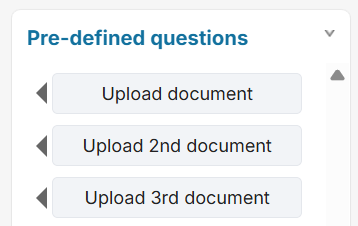
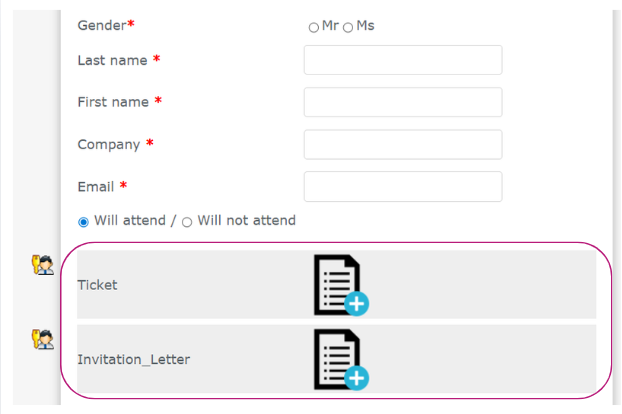
First, add the “Document” type fields you need to your registration form.
You can hide them if you don’t want them to be visible to participants.
Accessing the document import
Once your registrations are open:
Go to the Guests tab
Select the participants for whom you want to import a document (all or a subset, for example using an event or match filter).

Click Assign Files
Selecting documents
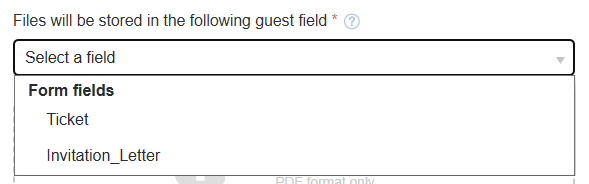
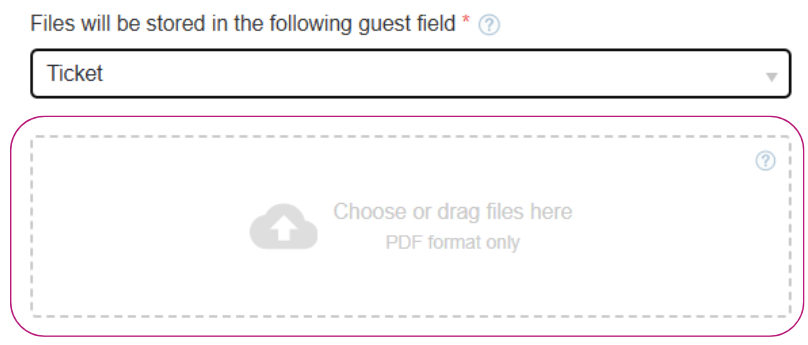
Choose the “Documents” field where you want to import your files.
Upload your documents :
By dragging them or selecting files in the upload area.
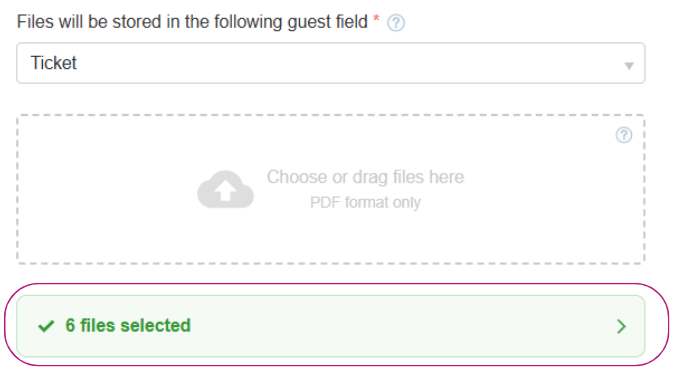
Once uploaded, the documents will appear here.
Defining matching rules
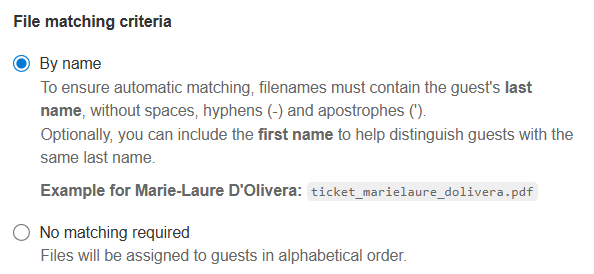
Match by name: Documents will be assigned based on the participant’s LAST NAME.
No matching required: Files will be assigned to guests in alphabetical order.
Example :
If your documents are uploaded in order (1, 2, 3), the platform assigns them alphabetically:
The platform then assigns them to participants in alphabetical order:
Participant A → document 1
Participant B → document 2
Participant C → document 3
Do not import new documents for participants who already have a document assigned by checking the corresponding box.

⚠️ If this option is unchecked, any newly imported document will replace the existing one.
Starting the import
Click Next to begin the import process.

Assignment summary page before import
The platform will show:
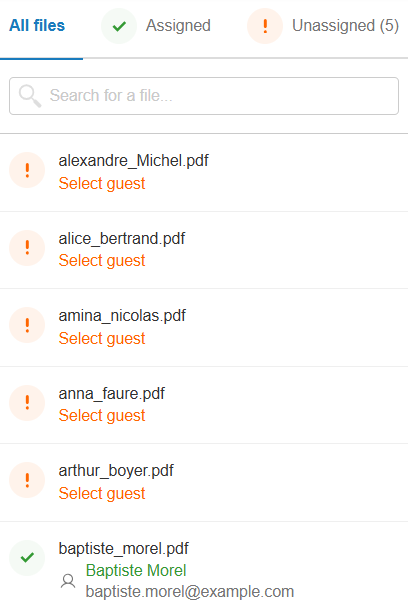
Assigned: documents automatically matched to participants
Unassigned: documents not matched (e.g., document name does not match participant name)
“Assigned” tab
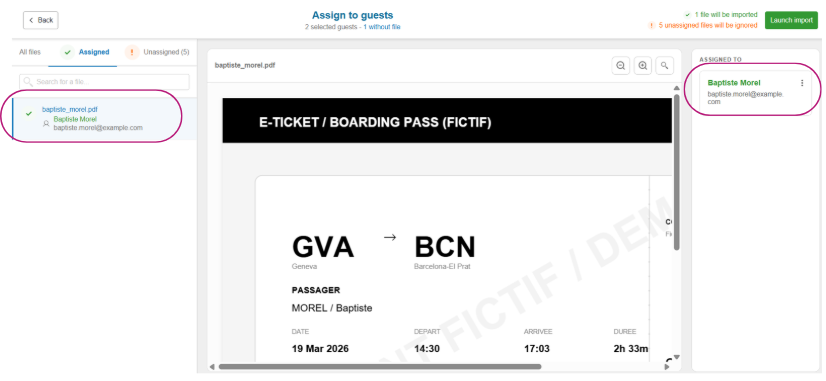
View the list of documents with their assigned participant.
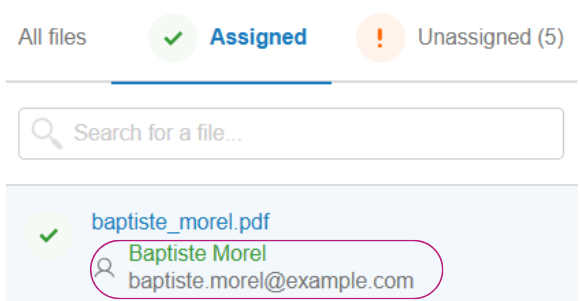
Clicking a name shows:
Left: document and participant name
Center: document preview
Right: participant information and option to edit assignment
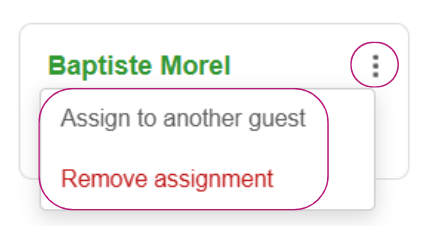
To change an assignment, click the three horizontal dots:
Assign to another participant
Remove assignment
“Unassigned” tab
View unassigned documents:
Left: document name
Center: preview
Right: option to assign to a confirmed participant
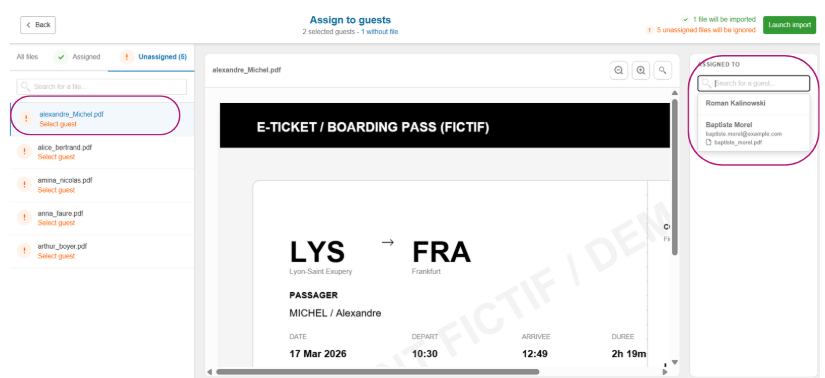
If a file appears under a participant’s name (e.g., xxxx.pdf),it means a document is already assigned to them in the current import.
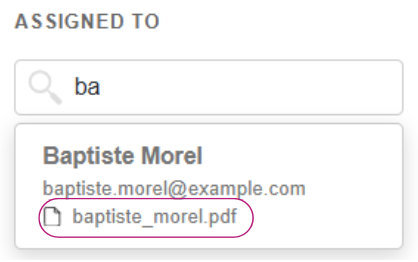
⚠️ Unassigned documents will not be imported.
Finalizing the import
Once assignments are verified, click Launch Import.

A confirmation message will indicate that the files have been successfully imported.
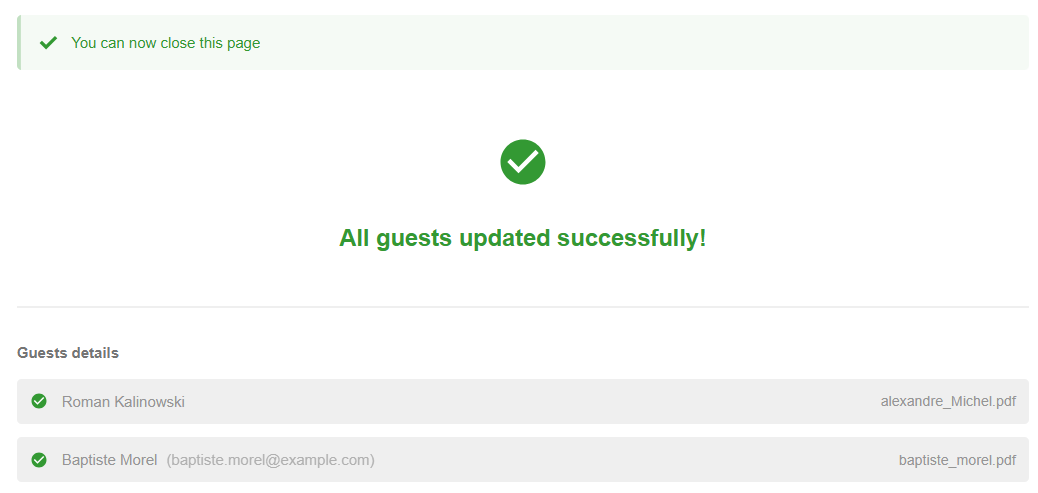
After the import
In the Guests tab, you can verify that documents are correctly displayed in the document columns.

Documents are also visible in each participant’s profile.
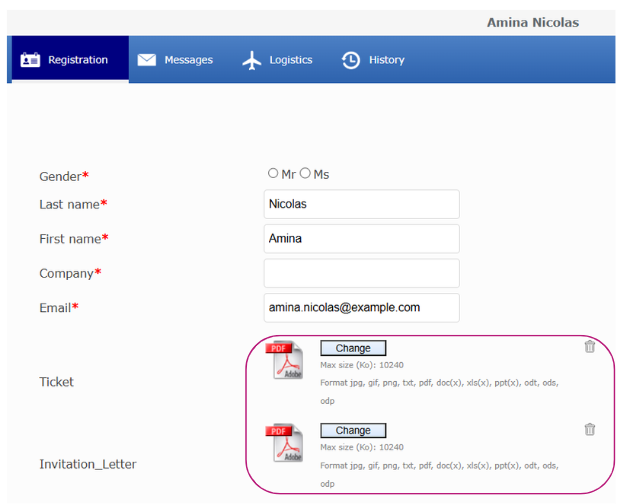
Sending documents by email
Prepare the email:
Go to Configuration > Edit Emails
Add the “Form Data” fields corresponding to the documents

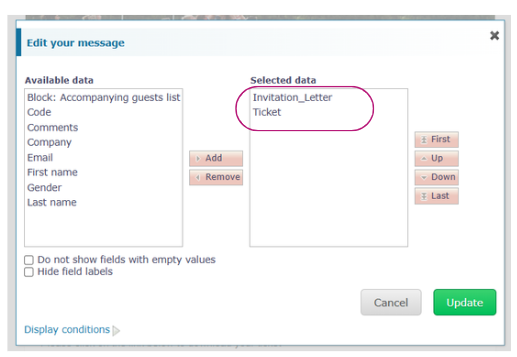
Send the email:
Select your participants in the Guests tab
Send the email containing the documents
File format requirements
PDF only
If matching by name:
File name must include the participant’slast name
First name can also be included
⚠️ It is recommended to remove spaces, hyphens (-), and apostrophes (’)
Example :
Marie-Laure D'Olivera → ticket_marielaure_dolivera.pdf
Note: Any existing file will be replaced